How to Create and Manage Omnichannel Chats
The omnichannel chat dashboard at chat.smsbat.com enables support operators to manage customer communications across multiple channels—such as Viber, Telegram, and WhatsApp—within a single, unified interface.
This guide explains how to create new chats, filter active conversations, and manage the operator workspace.
Workspace Interface Overview
The chat workspace is optimized for fast customer service and contains three main blocks:
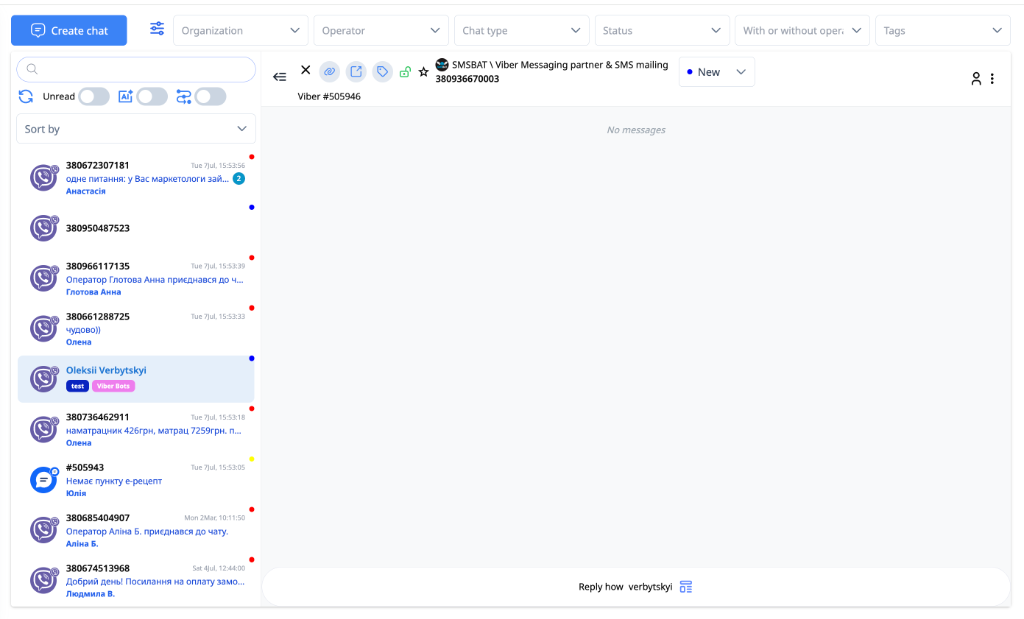
- Filter Header (Top): Allows you to filter messages by Organization, assigned Operator, Chat type, Status (e.g., New, Closed), and Tags.
- Chat List Sidebar (Left): Lists all active conversations. It includes:
- Channel icons (Viber, Telegram, etc.).
- Customer phone numbers or display names.
- Colored status dots for quick tracking.
- Toggle switches for Unread, AI (Chatbot) status, and All chats.
- Chat Feed (Center): The active conversation history where you read and send replies to the customer.
How to Create a New Chat
You can initiate a conversation with a customer from your side using any of your connected business accounts.
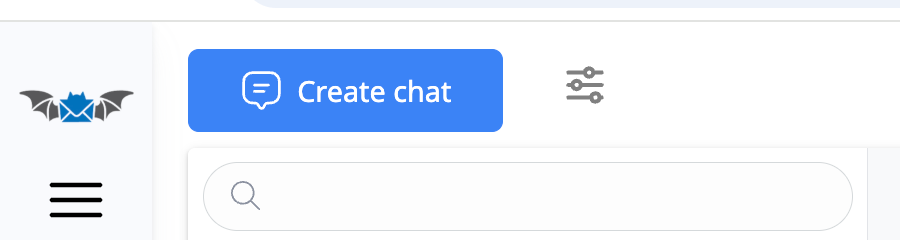
Step 1: Open Creation Dialog
Click the blue Create chat button in the top left corner of the workspace.
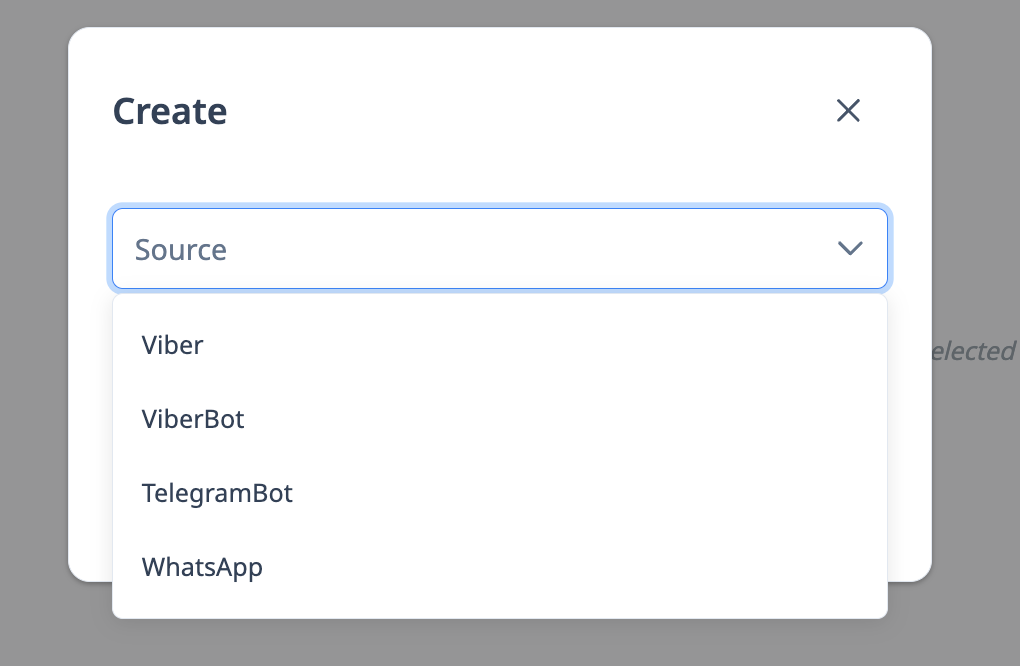
Step 2: Choose Communication Channel (Source)
In the popup dialog, open the Source dropdown menu and select the platform you want to reach the customer on: * Viber: Direct 1-on-1 messages from your Viber Business Account. * ViberBot: Automated interactive Viber bot. * TelegramBot: Your connected Telegram bot. * WhatsApp: Official WhatsApp Business API.
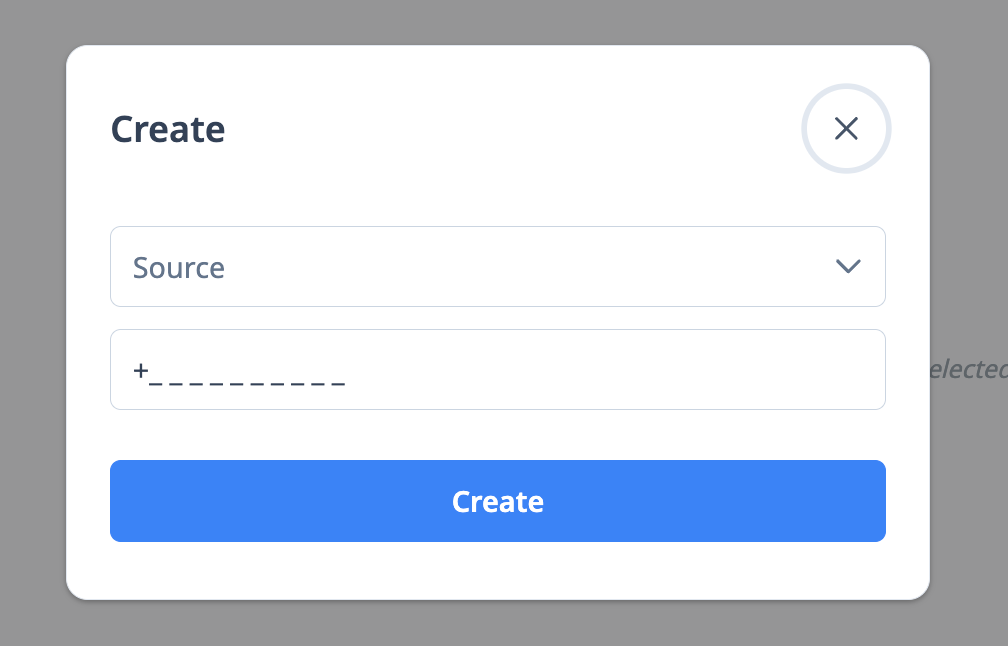
Step 3: Enter Customer Phone Number
Enter the customer's phone number in the input field using the international format (e.g., starting with +380... for Ukraine).
Step 4: Select Sender Account (For Viber)
If you select Viber as the source, an additional dropdown will appear. Select the official Viber sender profile (Alphanumeric sender ID) you want to send the message from.
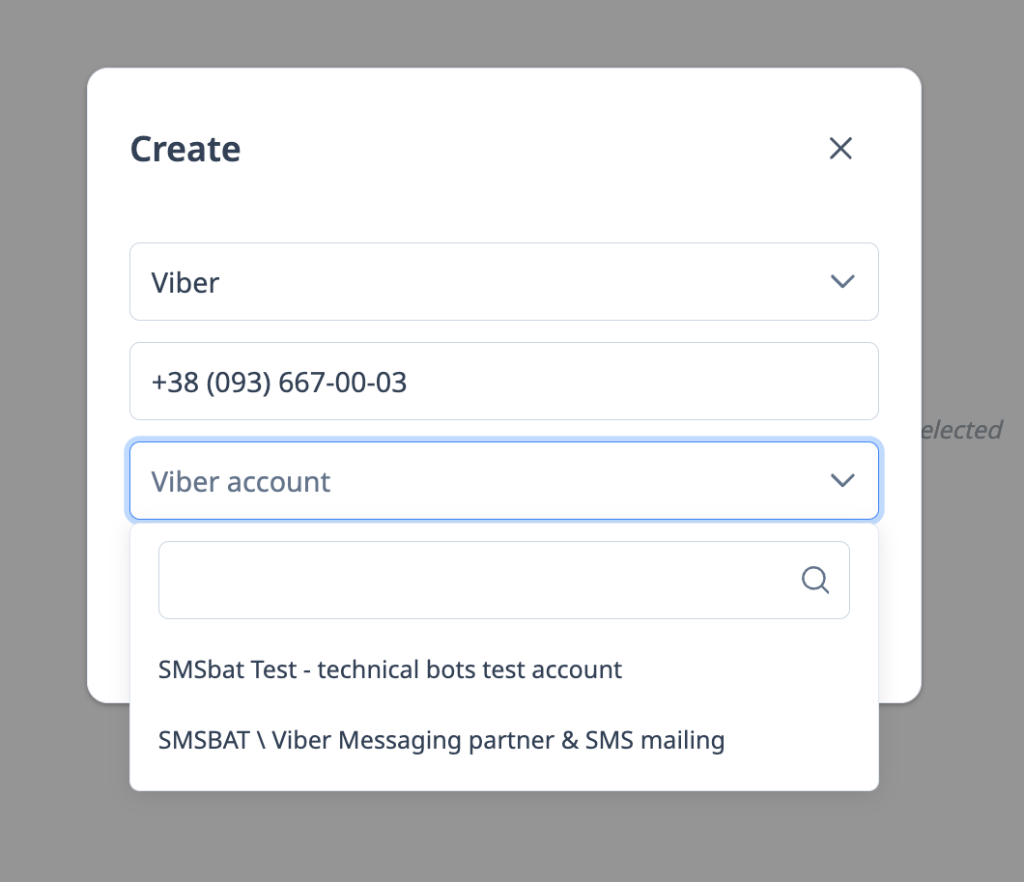
Step 5: Start the Chat
Click the blue Create button. The chat will open in the main feed immediately, allowing you to type and send your first message.
Chat Status and Operator Assignment
- Assigning Operators: Every chat can be assigned to a specific operator or left unassigned for the first free operator to pick up.
- Chat Statuses: Move chats through pipeline stages (e.g., New, Open, Closed) using the status dropdown menu in the chat header to maintain an organized queue.
Filtering and Navigation
To manage high volumes of active dialogues, operators can use the flexible navigation sidebar and filters bar.
1. Toggle Filters Panel
Click the slider settings icon in the top header next to the active category title to open or collapse the advanced filtering bar.
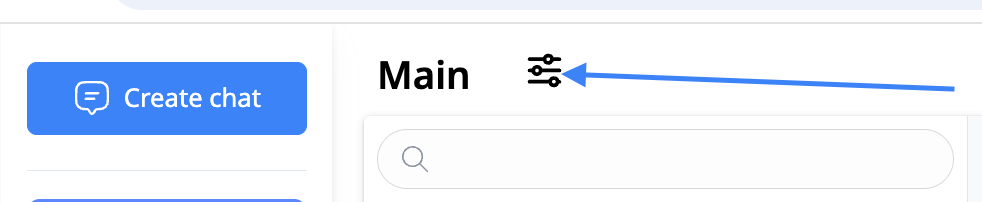
Once expanded, the filtering bar allows you to filter conversations by: * Organization: Select the company profile. * Operator: Filter chats assigned to a specific support manager. * Chat type: Viber, Telegram, WhatsApp, etc. * Status: New, Open, Closed, etc. * With/Without Operator: Filter unassigned customer messages. * Tags: Dialogues labeled with specific category tags.

2. Left Navigation Menu
Click the sandwich menu icon in the upper left corner below the logo to expand or collapse the main navigation sidebar.
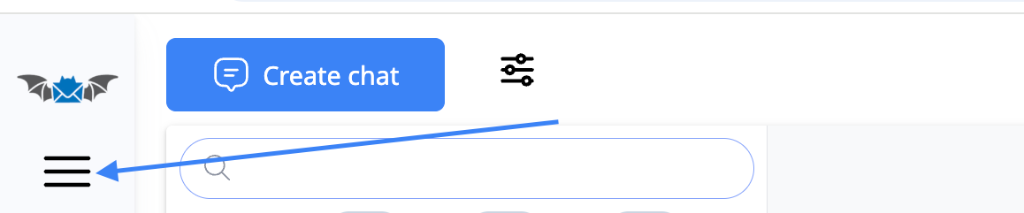
The expanded sidebar menu contains the following categories: * Main: Default view containing the global queue of active conversations. * Need operator: Filtered list of dialogues awaiting response. * My chats: Conversations assigned specifically to your operator account. * Starred: Dialogues flagged for follow-up. * Chats & Tags Dropdowns: Expandable categories for individual channels and labels.
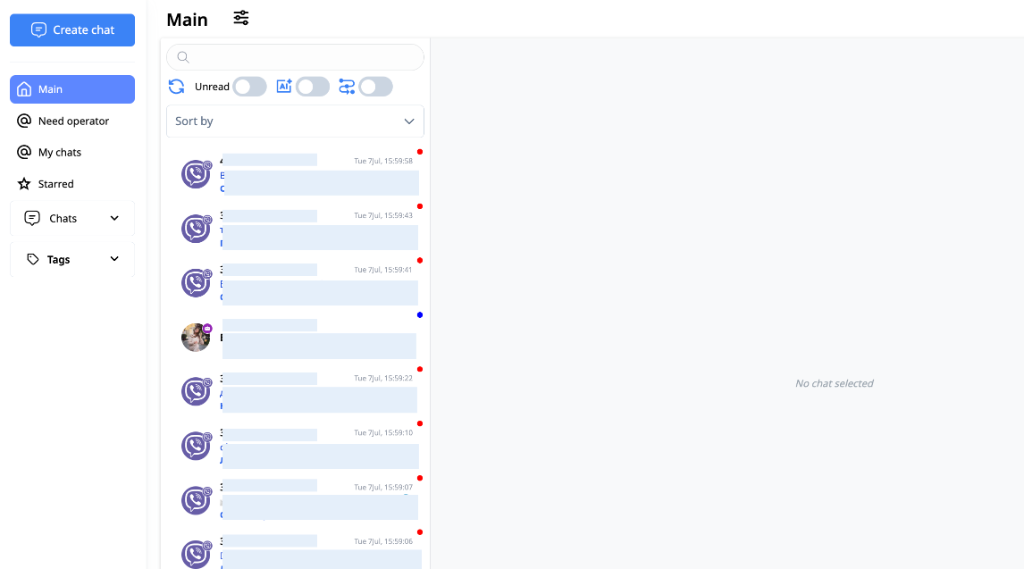
3. Quick Action Sidebar Controls
Located directly below the search input field, these toggles allow you to control how the active chat queue is filtered, grouped, and sorted:
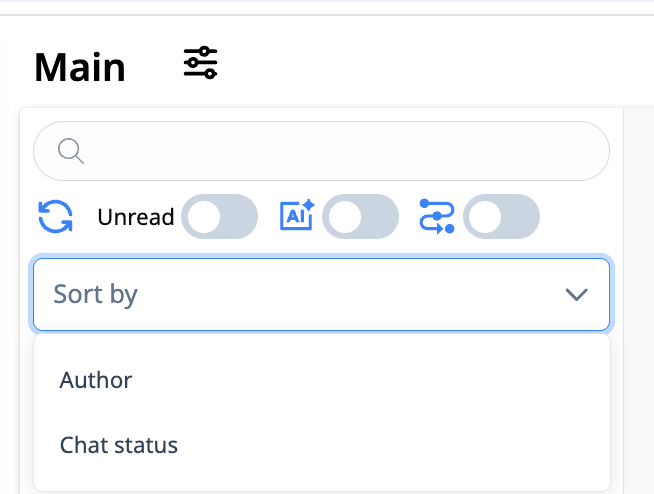
- Refresh List (
🔄icon): Manually reload and update the active chat list to get new messages instantly. - Unread Toggle: Filter the queue to show only dialogues that contain unread messages.
- AI Operator Toggle: Filter the queue to display only chats currently being handled by an automated AI agent (available if the n8n AI chatbot integration is connected and active).
- Single Thread View Toggle: Toggles how messages are grouped:
- Enabled: Group all customer history into a single continuous chat thread.
- Disabled: Split conversations into separate ticket cases (appeals).
- Sort By Dropdown: Sort the chat queue by Author (customer name) or Chat status (priority queue).